Instagram Reels Transcript: Getting the Link Right on iOS and Android
The transcript starts with the link, and the two phones do not copy the same link.
Short answer: an Instagram reels transcript fails far more often because of the link than because of the audio, and iOS and Android do not hand you the same link. The Instagram app’s own Copy link route appends a tracking block (the ?igsh=… tail) on both platforms, while a mobile browser’s share menu usually copies the clean /reel/<id>/ form. Copy from the browser, delete everything from the first ?, and the Reel that failed yesterday transcribes today.
Visual guide: Copy the video, not the feed
Validate the destination URL instead of relying on a fixed button position on either phone.
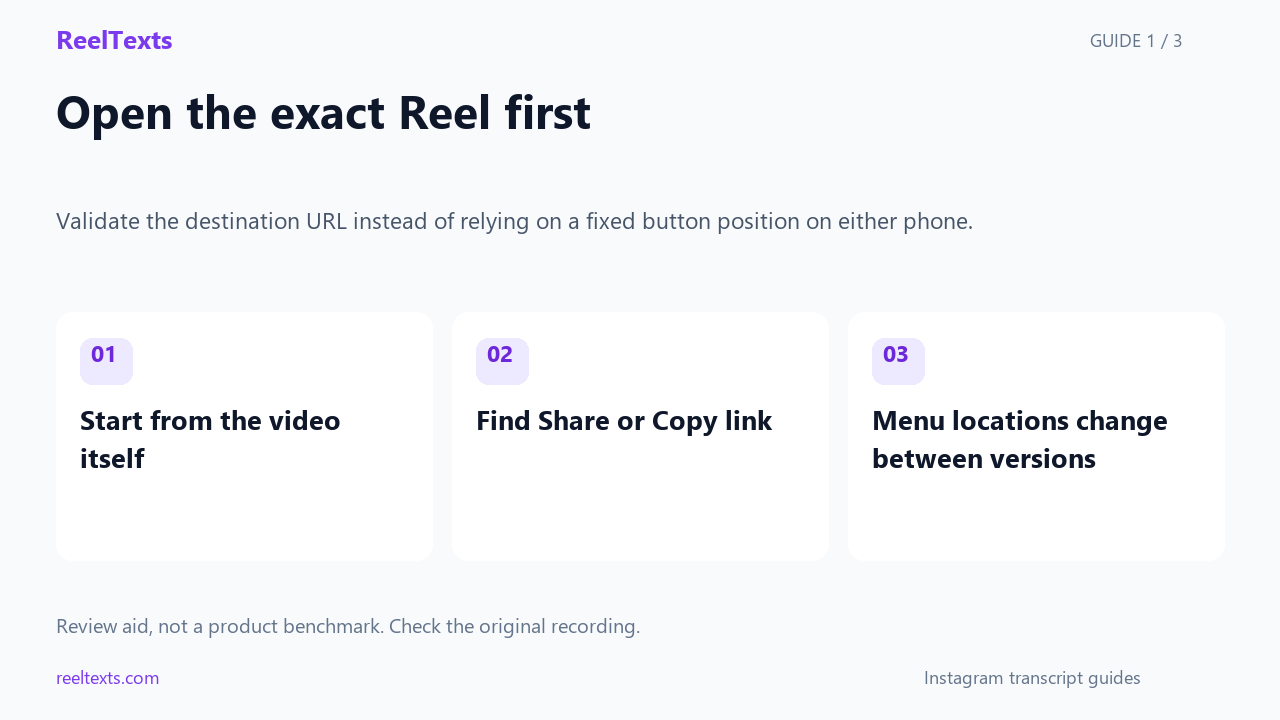
- Start from the video itself
- Find Share or Copy link
- Menu locations change between versions
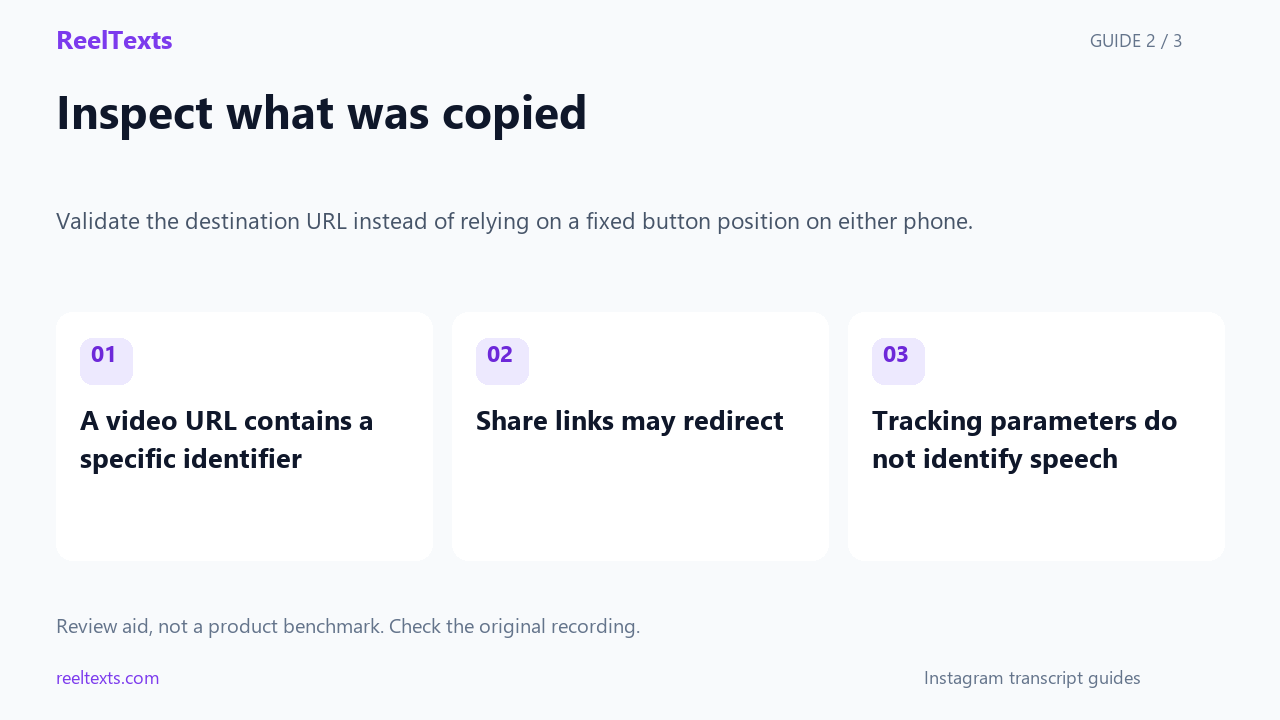
- A video URL contains a specific identifier
- Share links may redirect
- Tracking parameters do not identify speech
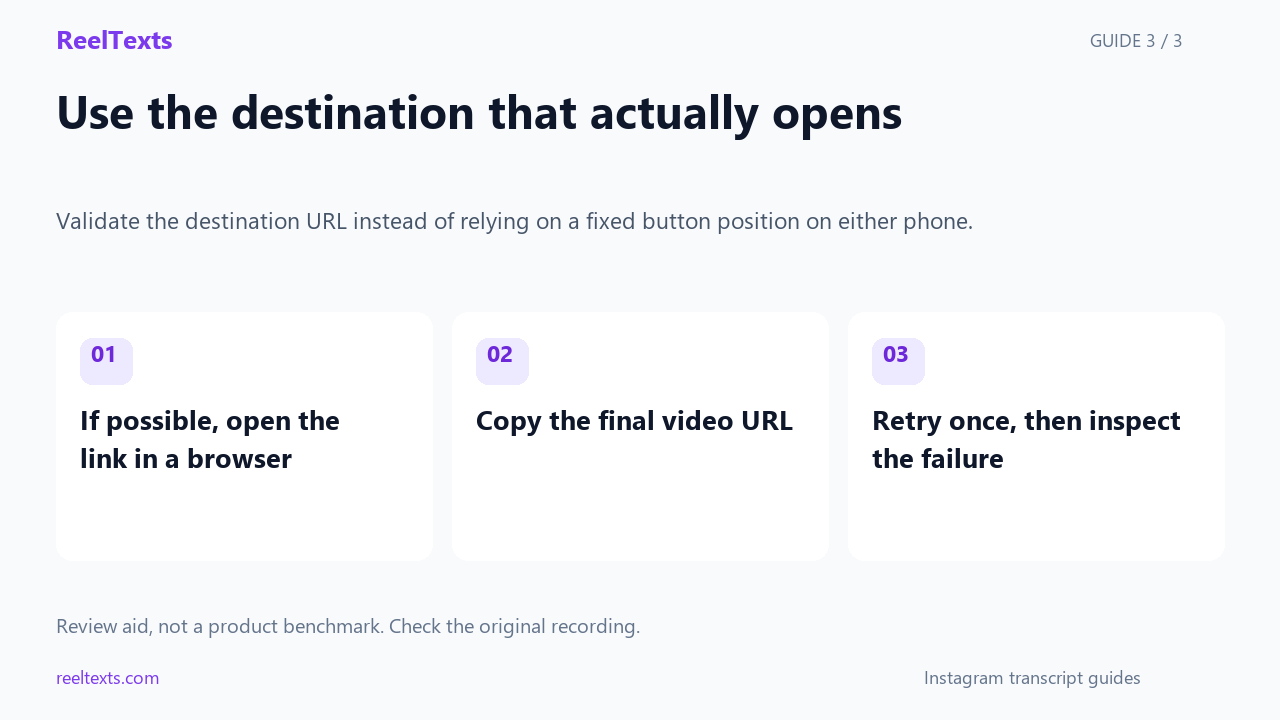
- If possible, open the link in a browser
- Copy the final video URL
- Retry once, then inspect the failure
Watch the narrated guide
English narration with captions. This guide explains the article; it is not a recorded product test.
Read the narration
Open the specific Reel before copying a link. A profile or feed address does not identify the video you want. On either phone, look for the share or copy-link action. Button locations can change with app versions.
Paste the copied link somewhere you can inspect it. Check that it points to the intended video. Some share links redirect, and some addresses include tracking parameters. Neither tells you whether the audio can be retrieved.
When a shared link opens in a browser, copy the final video address and confirm that it still refers to the same Reel. If transcription fails again, investigate access or retrieval rather than repeatedly changing the phone settings.
Same Reel, two different links
Open one Reel, copy its link on an iPhone, then copy the same link on an Android phone, and paste both into a text field side by side. They will usually not match. One may end in a long ?igsh=… string, the other may not; on some builds one of them is not even a post URL but a /share/reel/ redirect wrapper.
This is the whole reason a reels transcript can work perfectly one day and fail the next on the same phone. Nothing about the audio changed. The share sheet handed you a different shape of URL.
Menu labels move between app releases, so treat any guide that says “tap the third item” as already out of date. What is stable across versions is the structure of the two share sheets, and the URL each route produces. That is what this page maps.
Anatomy of the two share sheets
The platforms solve the same problem with different interfaces, and the difference decides how many taps you need and what lands on your clipboard.
| What you are doing | iOS | Android |
|---|---|---|
| Where Copy link lives inside the Instagram app | In the action list of the share sheet, below the row of app icons — you may need to scroll the list to reach it. The … overflow menu also carries it. |
As a Copy tile in the top row of the system chooser, left of the app targets. The ⋮ overflow menu also carries it. |
| Where Copy lives in a mobile browser | Safari’s share sheet, in the actions list under the app row. On some builds it is labelled Copy and copies the page URL. | Chrome’s share sheet, as a Copy tile in the top row. It copies the address-bar URL. |
| Resulting link quality | App route carries the tracking tail; browser route usually does not. | App route carries the tracking tail; browser route usually does not. |
| Clipboard behaviour worth knowing | One clip at a time. Copying the browser URL overwrites the app URL, so copy the one you intend to keep last. | Usually keeps a short history (system clipboard preview, plus Gboard’s clipboard pane), which makes it easy to compare the app link and the browser link before choosing. |
The last two rows are the practical takeaway: on Android you can usually see both candidate links and pick the clean one, and on iOS you should decide which one you want before you copy, because the second copy erases the first.
The two tap paths, side by side
The diagram below shows the tap path on each platform, and the link each one leaves on your clipboard.
Diagram of the tap paths, not screenshots from a specific app build. Instagram renames and moves these menu items between releases, so we describe the path by what you are looking for rather than by pixel position.
Which capture route gives you a readable link
There are five realistic ways to end up with a Reel link on a phone. They are not equally useful.
| Capture route | Typical URL | Readable as-is? | Fix |
|---|---|---|---|
| Mobile browser share → Copy | instagram.com/reel/ID/ |
Yes — cleanest phone route | None needed. |
| Instagram app overflow → Copy link | instagram.com/reel/ID/?igsh=… |
Yes, after trimming | Delete from the first ? to the end. |
| Instagram app share sheet → Copy link | instagram.com/share/reel/AbCdEf/ |
Not reliably — redirect wrapper | Open it once in a browser and copy where it lands. |
| Long-press the Reel in the app | Same as the app copy route | Yes, after trimming | Delete from the first ? to the end. |
| Copying from a profile grid or the Explore page | A link to the profile or the feed | No — wrong target | Open the Reel itself first, then copy. |
Why the app link is the dirty one
Both mobile platforms funnel app-side sharing through Instagram’s own share handler, and that handler appends an attribution tail so Instagram can see that a link travelled through its share flow. The igsh block is that tail. It identifies the share, not the post.
A browser’s share menu never enters Instagram’s handler. When Safari or Chrome copies a page URL, it copies the address bar verbatim — and by the time the Reel is fully loaded, the address bar holds the canonical /reel/<id>/ form with nothing appended.
That single asymmetry explains most of the folklore about “the link that works”. It is not about iOS versus Android at all, and it is not about which phone is better. It is about whether the URL passed through Instagram’s share handler on the way to your clipboard.
The deep-link trap on phones
There is one more platform difference that costs people a lot of time, and it works the same way in reverse on both systems: tapping an instagram.com link usually does not open a web page at all.
- iOS routes those links into the Instagram app through Universal Links, and often shows an “Open in Instagram” banner. Once you are in the app, there is no address bar to copy from.
- Android does the same through App Links and Chrome’s “Open in app” intent banner.
The consequence is counter-intuitive: the way to get a clean link on a phone is to keep the page in the browser and copy it from the browser’s own share menu. Long-press the link instead of tapping it, or open it in a private or incognito tab, where the hand-off to the app is less aggressive.
If your link keeps turning into the Instagram app, stop fighting it. Copy from a desktop browser once and send the URL to yourself. The canonical form is identical regardless of which device produced it, so a link captured on a laptop works perfectly on a phone.
Five link problems that look like tool failures
- “The link opens the app, so I never see a URL.” Universal Links and App Links are doing their job. Long-press rather than tap, or use a private or incognito tab.
- “My link has a long tail of gibberish.” That is the
?igsh=…attribution block. Cut everything from the first?to the end of the URL. - “My link is
/share/reel/…and nothing reads it.” That is a redirect wrapper built for the share sheet, not a post address. Open it once in a browser and copy the address bar after it settles. - “I copied from the profile and got the wrong video.” Grid and Explore links point at the profile or the feed, not at a single Reel. Open the Reel itself, then copy.
- “There is no Copy link option at all.” You are looking at a Story, or at a post from a private account. Neither has a public media URL, so no tool can reach the audio. Ask the poster to save and send the clip.
The ten-second cleanup, per platform
On iOS
- Open the Reel in Safari, not in the app. If tapping opens the app, long-press the link and choose to open it in the browser.
- Let the page settle, then tap the share icon and choose Copy from the actions list.
- Paste it somewhere you can edit — the address bar, a note, or the tool’s input box.
- Delete everything from the first
?to the end, and keep the trailing slash.
On Android
- Open the Reel in Chrome. If the “Open in app” banner appears, dismiss it rather than accepting.
- Tap the share icon and tap the Copy tile in the top row of the chooser.
- If you already copied from the app, open your clipboard history and compare the two entries — pick the one without the
?igsh=tail. - Trim anything after the first
?and paste.
The same four steps work on a desktop browser, minus the app-hand-off problem: the address bar is already the canonical URL.
What a reels transcript tool needs from the link
Very little, which is why the cleanup above is worth doing before you start diagnosing anything else. A working reels transcript tool needs one thing: a canonical, public post URL. It does not need your Instagram session, it does not care which phone produced the link, and it ignores the igsh tail entirely.
That is also why “which platform are you on” is the wrong question to bring to a support thread. The right question is “what does your URL look like”, because that is the only variable that changes between a run that works and a run that does not.
How to Transcribe Instagram Reels as a Set
Once the link is clean, the next problem when you transcribe Instagram Reels as a set is bookkeeping rather than transcription. A series of Reels is not one job; it is as many jobs as there are Reels. This tool takes one public post, Reel or IGTV link at a time — there is no account-level input — so ten Reels means ten pastes, and any tool that advertises otherwise is worth checking before you trust what it returns.
The identifier that matters is the shortcode, not the URL string. /reel/C8xQ2mZsYz1/ and the same address with an ?igsh=… tail are the same Reel, and pasting both returns the same text twice under two different filenames. Strip the tail, keep the shortcode, and use it as the filename: a folder of shortcode-named text files shows at a glance which Reels are done and which are not.
Then work in a fixed order, one Reel at a time:
- Clean the link and read the shortcode before you paste anything.
- Paste it, then compare the first two lines of the text against what you hear in the first ten seconds.
- If they do not match, treat it as a link problem and go back to step one. Changing audio settings will not repair a link.
That third step is what saves time across a batch. When a run comes back wrong, the cheap test is always the same: does the text match the first ten seconds? If it does, the link was fine and the problem is further in. If it does not, you are looking at the wrong Reel, or at an address that resolved to something else entirely.
Questions people actually ask
- Does it matter whether I copy the link on iOS or Android?
- Not for the tool — the canonical post URL is identical on both. What differs is the route you take to get it. The app’s copy route appends a tracking tail on both platforms, and a browser’s share menu does not, so the browser route is cleaner on either phone.
- Why does my Android link end with
?igsh=…? - That is Instagram’s share-attribution tail, added by the app’s own share handler so the platform can tell a shared link from a typed one. It says nothing about the post. Delete everything from the first
?and the link still points at the same Reel. - Why does my iOS link open the Instagram app instead of a web page?
- Universal Links. iOS hands
instagram.comURLs to the installed app rather than rendering them in Safari. To keep the URL visible, long-press the link instead of tapping it, or open it in a private tab. - Where is Copy link on iOS?
- Inside the Instagram app it sits in the action list of the share sheet, below the row of app icons, and you may have to scroll the list to find it. The
…overflow menu carries the same item. In Safari, Copy is in the share sheet’s actions list. - Where is Copy link on Android?
- In the Instagram app it is a Copy tile in the top row of the system chooser, and also an item in the
⋮overflow menu. In Chrome it is the same tile in the top row of the share sheet. - Can I get an Instagram reels transcript from inside the app?
- No. Instagram has no transcript feature, and its automatic captions are drawn onto the video frame rather than stored as text you can select or export. The words only exist as audio, so something outside the app has to listen to them.
- Do I need the Instagram app installed to get a reels transcript?
- No, and a browser is actually the better instrument. Copy the link from a browser, paste it into the tool on this site, and the app is never involved — which also means no login and no session.
- The same link worked yesterday. What changed?
- Check the URL shape first. If yesterday’s copy came from a browser and today’s came from the app’s share sheet, you are pasting two structurally different links. Re-copy through the browser route before you conclude anything about the Reel.
The bottom line
iOS and Android both bury Copy link behind a share sheet, and both hand you the same post URL with the same tracking tail when you copy from the Instagram app. The difference that matters is not between the phones; it is between the app and the browser. Copy from a browser, cut everything after the first ?, and an Instagram reels transcript becomes a one-step job instead of a diagnosis.